Xcode 26 Requirement: What Teams Must Do Now
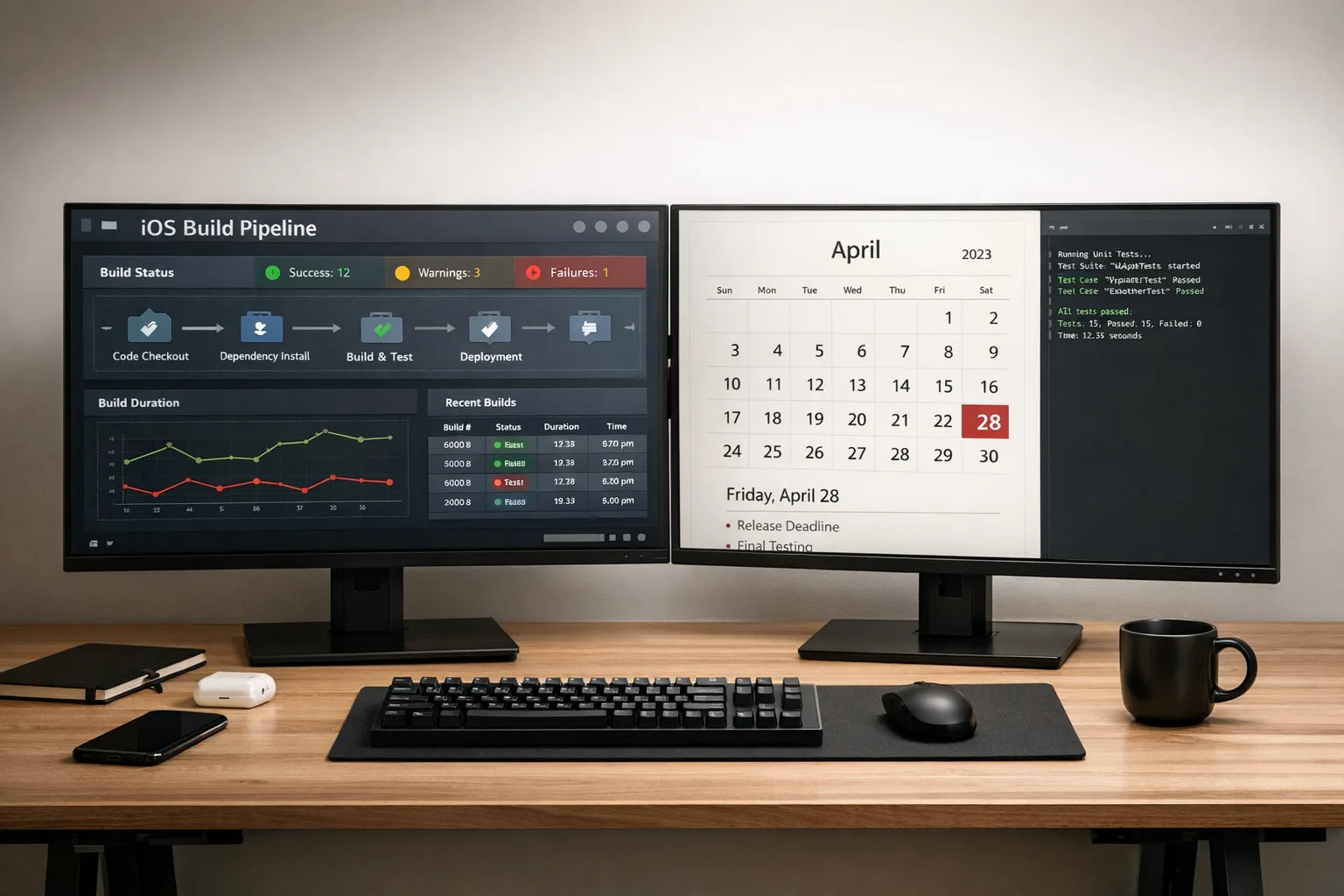
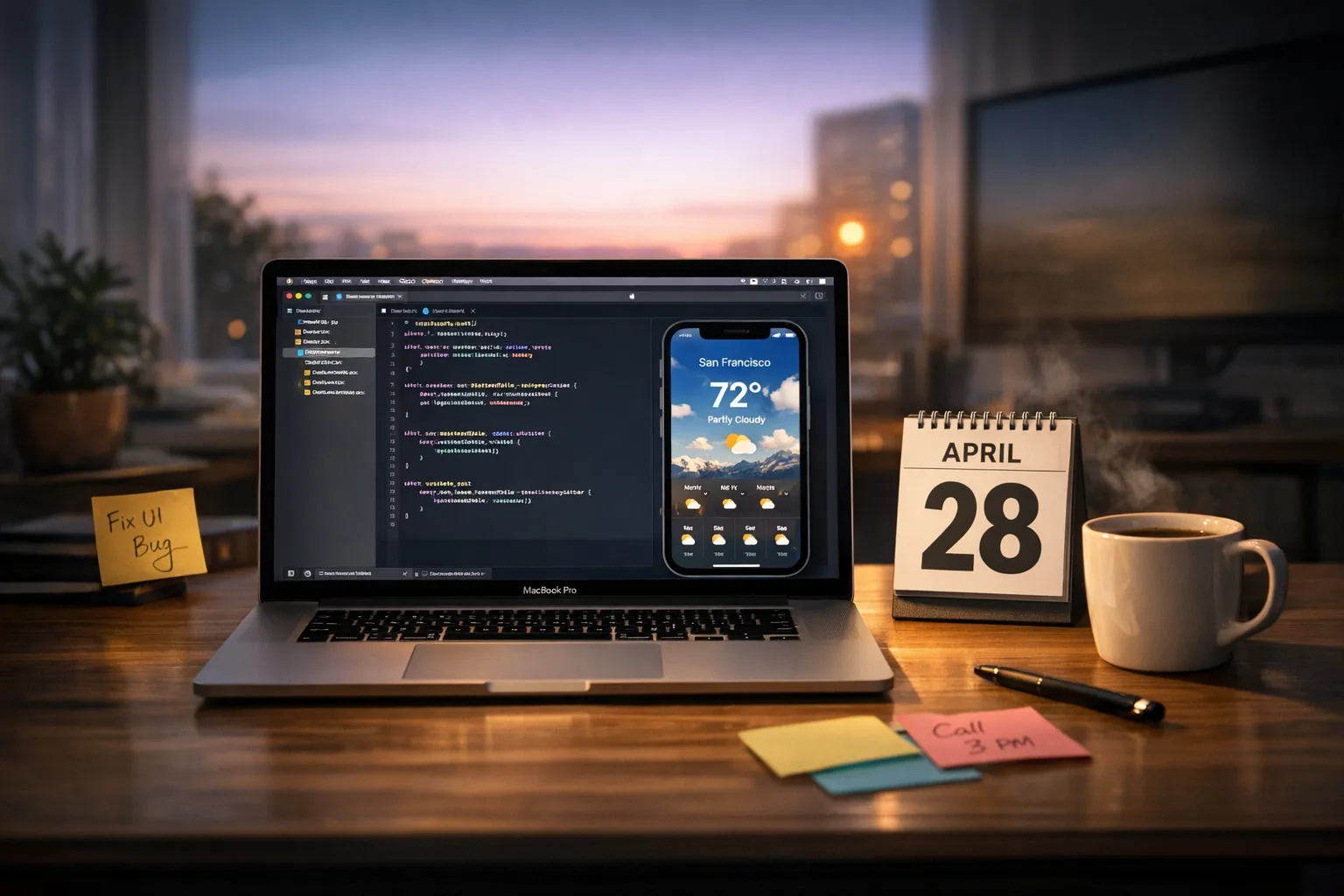
The Xcode 26 requirement is now a hard date: starting April 28, 2026, every new upload to App Store Connect must be built with Xcode 26 (or later) using the iOS 26, iPadOS 26, tvOS 26, visionOS 26, or watchOS 26 SDKs. This is a build-time gate, not a forced drop of older OS support—but it will ripple through your toolchain, dependencies, tests, and release calendar. If you own a mobile roadmap, treat this like a production change window with clear checkpoints and rollback options.
What exactly changes with the Xcode 26 requirement?
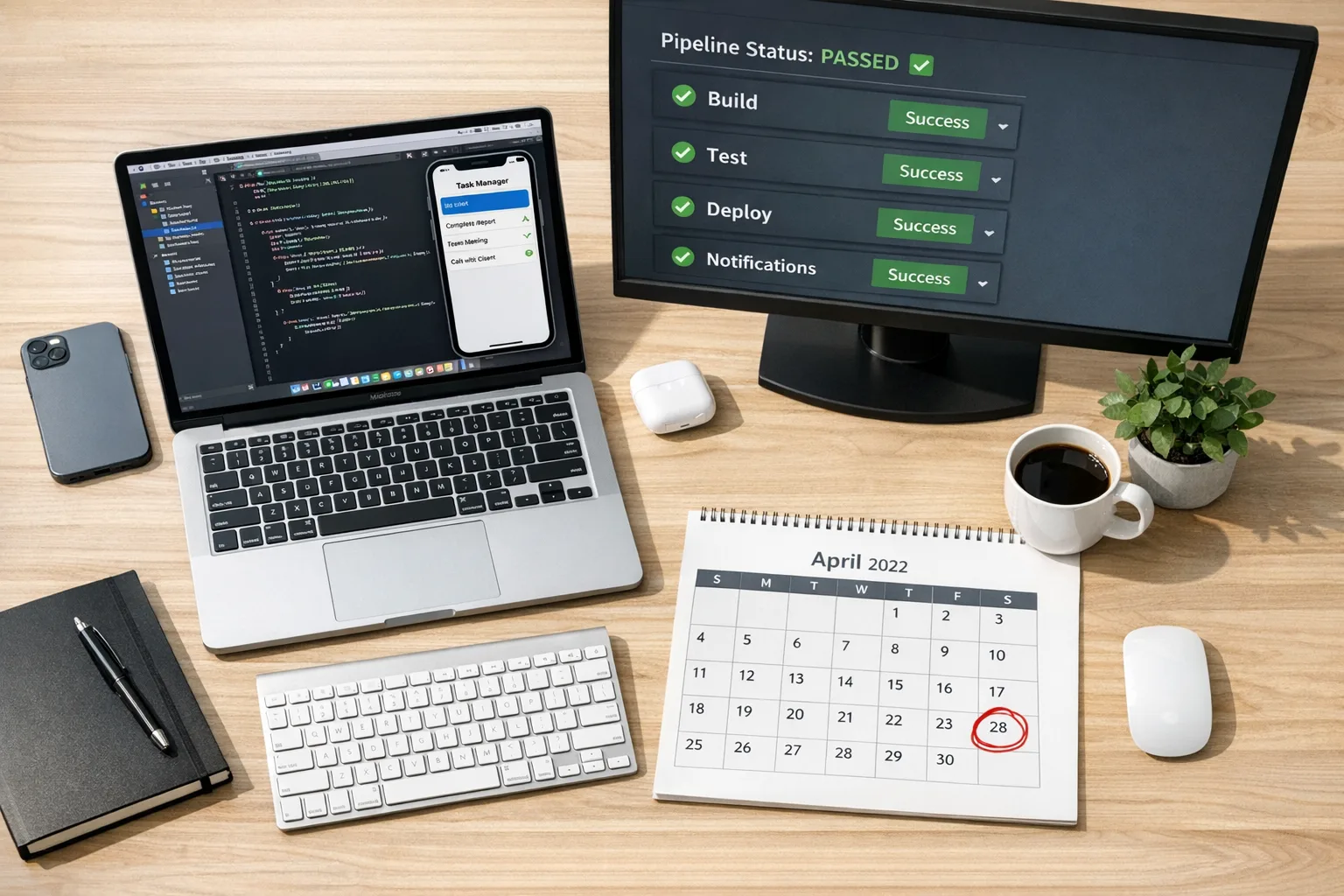
Here’s the practical version of the policy: after April 28, 2026, App Store Connect rejects new builds compiled with older SDKs. Shipping builds must come from Xcode 26+ targeting the 26‑series SDKs. Your minimum deployment target can still include earlier OS versions, but compile-time defaults, UI components, permission prompts, and certain runtime behaviors will follow the 26 SDK.
Three dates matter if you want a frictionless release train:
• January 31, 2026: Apple auto‑updated age ratings and added new questionnaire items. If you haven’t completed them, you’ll hit submission friction the moment you try to upload.
• April 28, 2026: Minimum SDK enforcement flips to the 26‑series with Xcode 26 as the required toolchain.
• Historical context: a similar toolchain gate hit on April 24, 2025 for Xcode 16 and the iOS 18‑series SDKs. If you survived that one by the skin of your teeth, assume less grace this time.
Does this force you to drop older iOS versions?
No. The mandate is about the toolchain and SDK used to build your binary, not the oldest OS you support. You can continue to deploy broadly as long as your code and third‑party libraries behave on those versions. The catch is subtle: when you compile against the 26 SDK, newer defaults and deprecations may change UI, entitlements, and permission flows. You need targeted tests on your oldest supported devices to confirm nothing critical regressed.
Why teams get bitten: the four real failure modes
Here’s where we’ve seen releases derail:
• CI image drift: your GitHub Actions, GitLab, or Bitrise stack silently pins an older Xcode image. Local builds pass; store submission fails late with an SDK version error.
• Dependency mismatch: an ad network, analytics SDK, or payments library hasn’t validated on the 26 SDK yet, or requires a minor update that conflicts with another dependency.
• Privacy and permission text: the 26 SDK updates prompt copy and behavior. Vague or missing purpose strings can turn into review delays or rejections.
• UI papercuts: component styling, hit targets, dynamic type, and contrast tweaks lead to accidental layout shifts and tap‑area regressions on small devices.
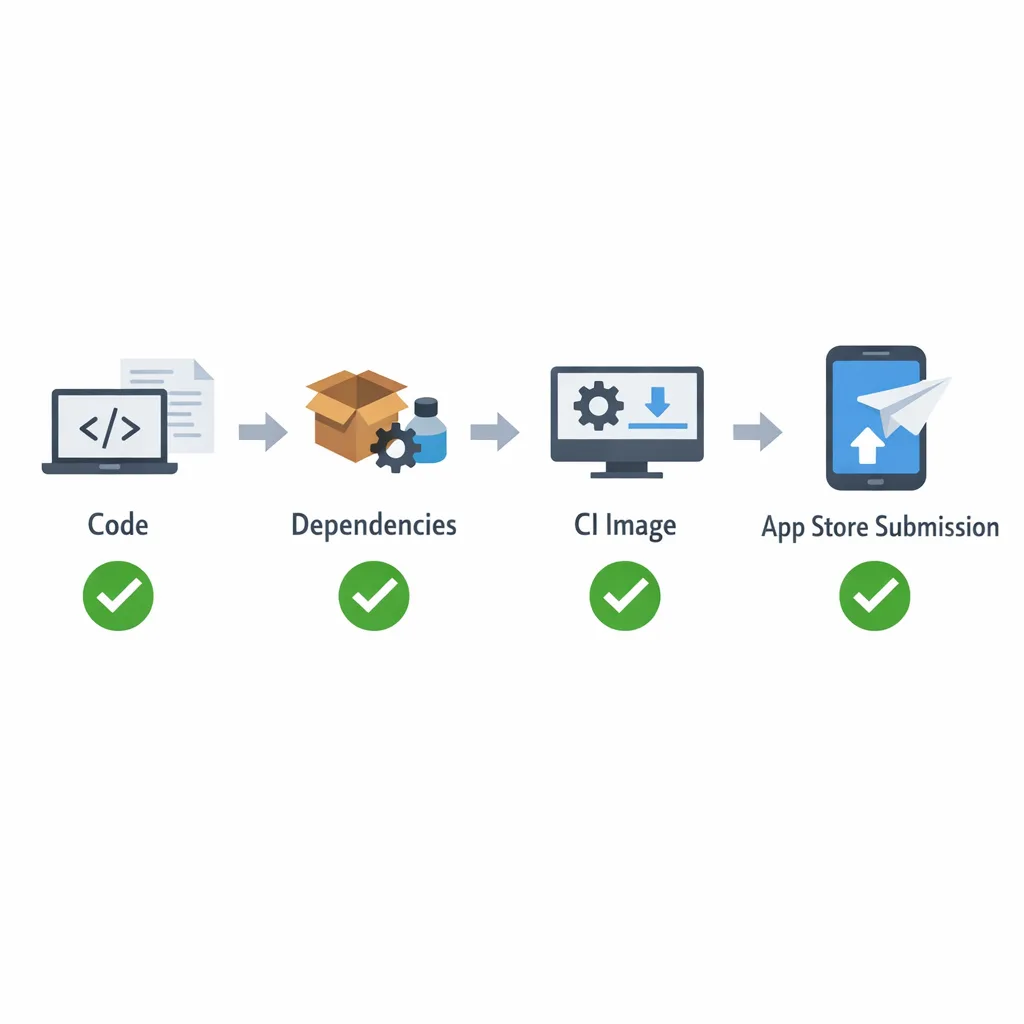
The 4×4 Migration Framework
When time is tight, you need a compact plan that covers the bases without boiling the ocean. Use this 4×4: four domains, four actions each.
1) Code
• Build cleanly on Xcode 26; fix deprecations surfaced as errors.
• Audit permission prompts (camera, mic, photos, location). Ensure explicit, specific purpose text.
• Replace gated or private APIs; confirm feature flags for risky areas.
• Add guards for version‑conditioned code paths so older OS targets keep working.
2) Dependencies
• Update package managers (SPM/CocoaPods/Carthage) and lockfiles.
• Validate ad/analytics/payments SDKs on the 26 SDK; upgrade to the vendor’s recommended minimum.
• Eliminate abandoned libraries; fork or replace if maintainers are inactive.
• Run a license and privacy review to ensure your disclosures match actual behavior.
3) Tooling
• Pin CI to Xcode 26 explicitly; don’t trust “latest”.
• Cache the Xcode toolchain and simulator runtimes to speed builds and keep them reproducible.
• Add a preflight job that runs archive + export with store settings to catch signing or entitlement issues early.
• Capture and alert on “SDK version issue” warnings from upload logs.
4) Operations
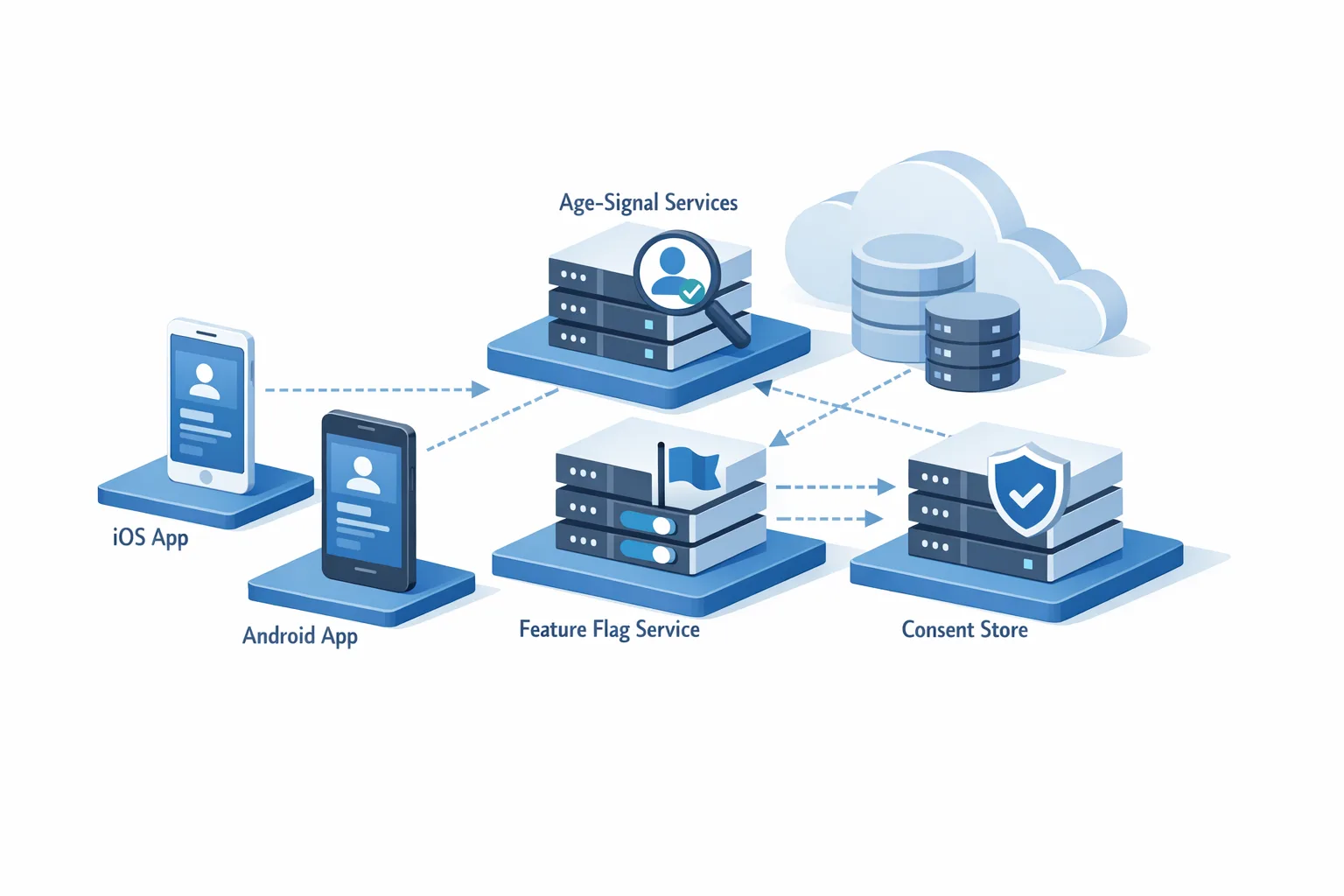
• Finish the age‑rating questionnaire in App Store Connect.
• Update release notes and support docs to address permission changes and user‑visible tweaks.
• Set a feature‑freeze window the week you cut the store build—especially for teams with shared modules.
• Pre‑book review time and slack capacity; surprises happen when UI or copy changes land late.
People also ask: common upgrade questions
Will my CI break when I flip to Xcode 26?
It might if your pipelines auto‑select a default image. Make the version explicit. Add a smoke job that archives a production configuration and verifies export options and entitlements. Keep your previous Xcode image available for a week to unblock emergency hotfixes while you stabilize the 26 build.
Do I need to refactor for new privacy rules?
You need accurate, specific permission text and behavior aligned to your app’s flows. If your app accesses camera, mic, location, health, or local network, ensure the runtime prompts appear where they make sense and your help center explains why. Small inconsistencies often lead to review questions and delays.
How much time should I budget?
For a typical consumer app with 5–10 dependencies and a modest test suite, the upgrade itself is 1–3 days of engineer time if nothing breaks. Realistically, plan a 2–3 week window to accommodate dependency updates, QA passes, and a safety buffer for app review clarifications.
A 30‑day ship plan you can start today
Day 1–2: Branch and baseline. Create an upgrade/xcode‑26 branch, bump project settings, and get a clean archive locally. Snapshot performance metrics (launch time, cold/warm start, scroll hitches) on your reference devices.
Day 3–5: Dependency sweep. Update SPM packages and pods, remove dead code, and fix deprecations flagged as errors. If an SDK isn’t ready, escalate to the vendor and prepare a temporary feature flag to disable the risky surface.
Day 6–8: CI pinning. Update your CI image to Xcode 26 and add a preflight “archive + export” job with store‑like signing. Cache simulator runtimes and the toolchain to keep throughput high.
Day 9–12: Permissions and copy. Rewrite any generic permission text to be specific and helpful. QA the prompts at the exact moments users trigger those features. Update your help center and in‑app support flows.
Day 13–16: Accessibility and UI passes. Verify dynamic type, hit targets, and contrast, especially on 4.7‑inch and mini‑class devices. Run automated checks plus manual tap tests on primary journeys.
Day 17–20: Beta and canary. Ship a TestFlight build to a small cohort. Instrument crash‑free sessions, cold‑start metrics, and top screen render times. Keep logging verbose for one build to spot oddities.
Day 21–24: Review readiness. Complete the age‑rating questionnaire if you haven’t. Ensure in‑app purchase descriptions and screenshots match behavior. Pre‑draft answers for likely review questions.
Day 25–28: Cut the release candidate. Freeze features, only accept P0 bug fixes. Run the full test matrix, including your oldest supported OS and smallest screen size.
Day 29–30: Submit and monitor. Stage the rollout after approval, watch logs and support tickets, and be prepared to pause or expedite a hotfix.
Risk register: the bugs that actually cost you
• Notifications with upgraded authorization options. If you’ve customized notification flows, confirm registration and category handling still behave with the 26 defaults.
• Camera and photo picker intents. Verify the handoff between your UI and the system pickers—edge cases around cancellation or privacy‑sensitive folders can produce silent failures.
• Background tasks and scheduling. SDK changes sometimes alter timing tolerances; if you depend on accurate refresh windows, re‑observe on device.
• Network stack. TLS ciphers and ATS defaults shift over time. Make sure legacy endpoints and pinned cert logic still connect as expected.
Lean test matrix for the 26 SDK
You can’t test everything. You can test the few things that matter. Run this focused matrix:
• Oldest iPhone you support on your minimum OS target: install, onboarding, sign‑in, paywall, purchase flow, push, and deep links.
• Small‑screen touch audit: tap targets on primary CTAs, nav, and paywall dismiss.
• Permissions tour: location, camera, microphone, photos—the exact flows you expect users to see.
• Device policies: if you’re B2B, run on a managed device with the common restrictions you see in the field.
• Store upload preflight: archive with production entitlements and export options, then validate.
But what if a core SDK isn’t ready?
Here’s the thing: you don’t always control vendors. Your options are: (1) pressure the vendor for a compatible build with clear timelines, (2) isolate the dependency behind an interface and ship without the feature for a release, or (3) replace the component outright. For revenue‑critical surfaces—ads, attribution, payments—option (2) buys time without compromising your submission deadline. Communicate the temporary impact to stakeholders and pin a follow‑up release date.
Strategy for product owners: hold schedule without burning the team
Timeboxes, not heroics, win these upgrades. Set a small, empowered strike team for the first pass, protect them from feature interrupts, and run daily 10‑minute check‑ins with a crisp blocker list. Keep the rest of the squad focused on value work behind flags. When the upgrade passes TestFlight, fan out fixes and remove flags in a single, low‑risk merge train.
Practical examples and resources
If you want deeper, scenario‑based guidance, we’ve published targeted playbooks. For an aggressive timeline, read our 30‑day migration plan. If you need a broader runway with parallel feature delivery, use the April 28 upgrade playbook. And if you’d prefer hands‑on help, our mobile engineering services include CI hardening, dependency audits, and test matrix design tailored to your app’s footprint.
Field notes from recent upgrades
• CI flakiness often isn’t about the toolchain—it’s simulator availability. Cache requested runtimes and prune orphaned images to stop timeouts.
• Don’t mix “quick dependency bump” with “UI refresh.” Each change can hide the other’s regressions. Sequence them.
• Purpose strings should be human, not legalese. “We use your location to show nearby pickup spots” beats generic copy every time and clears review faster.
• For teams with both iOS and Android: align test plans now. On Android, large‑screen rules tighten this year; treating adaptive layouts as a first‑class requirement on both platforms keeps your design system honest.
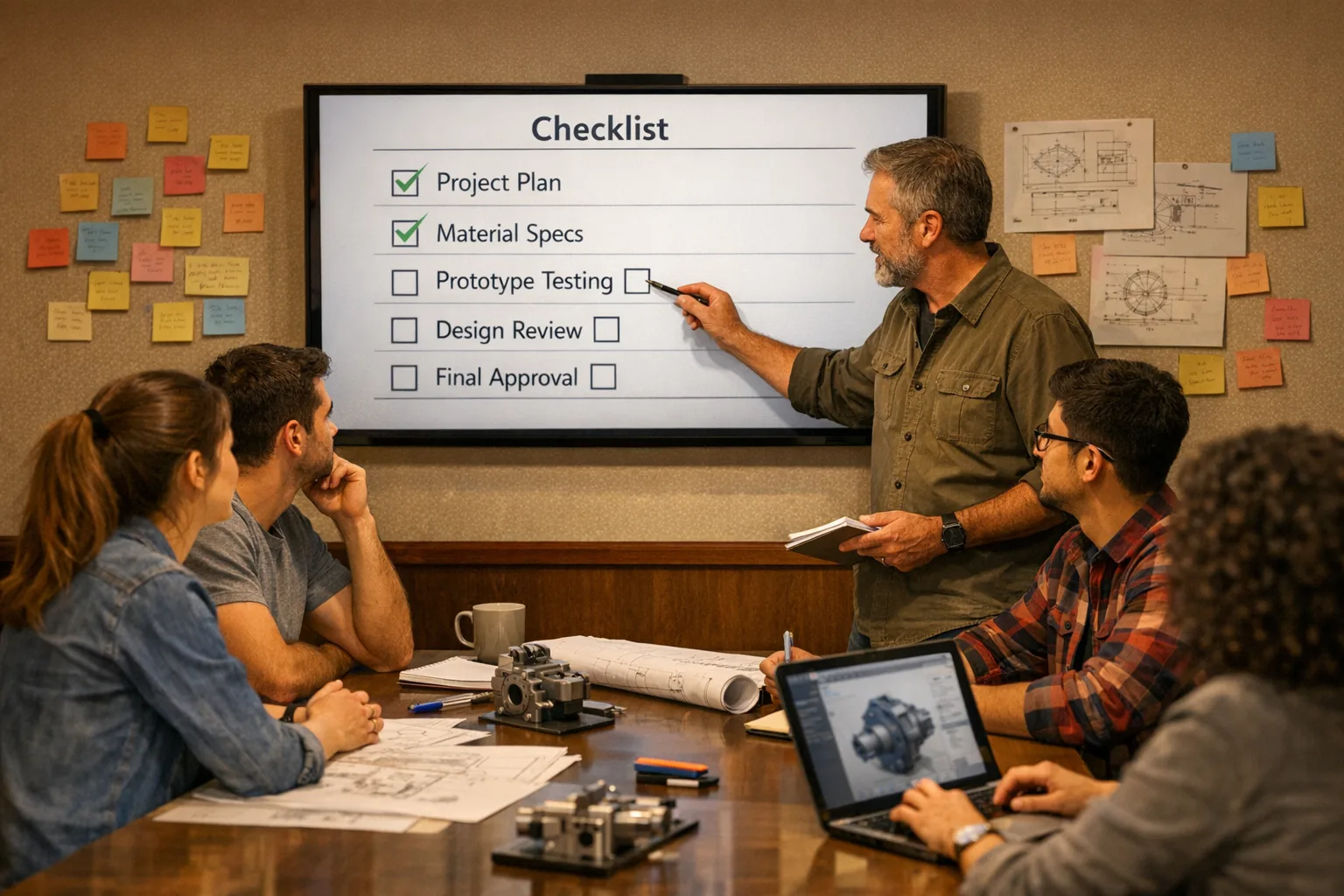
What to do next (developers)
• Create the upgrade branch, build on Xcode 26, and fix top‑level deprecations.
• Pin CI to the Xcode 26 image and add the archive preflight job.
• Update dependencies and remove any orphaned or abandoned libraries.
• Run the lean test matrix and ship a TestFlight build to a small cohort.
What to do next (product owners)
• Lock the dates: April 28, 2026 submission gate; schedule freeze windows accordingly.
• Ensure the age‑rating questionnaire is complete in App Store Connect.
• Plan one follow‑up release for dependency catch‑ups and minor polish.
• Update support and release notes to anticipate permission prompt questions.
Want help shipping on time?
If you’d like a second set of eyes on your CI configuration, SDK choices, or test plan, we’re happy to jump in. Start with our what we do overview, skim recent outcomes in the portfolio, or ping us via contacts for a quick review of your upgrade branch. The goal is simple: meet the Xcode 26 requirement without drama, keep your roadmap intact, and ship with confidence.


Comments
Be the first to comment.