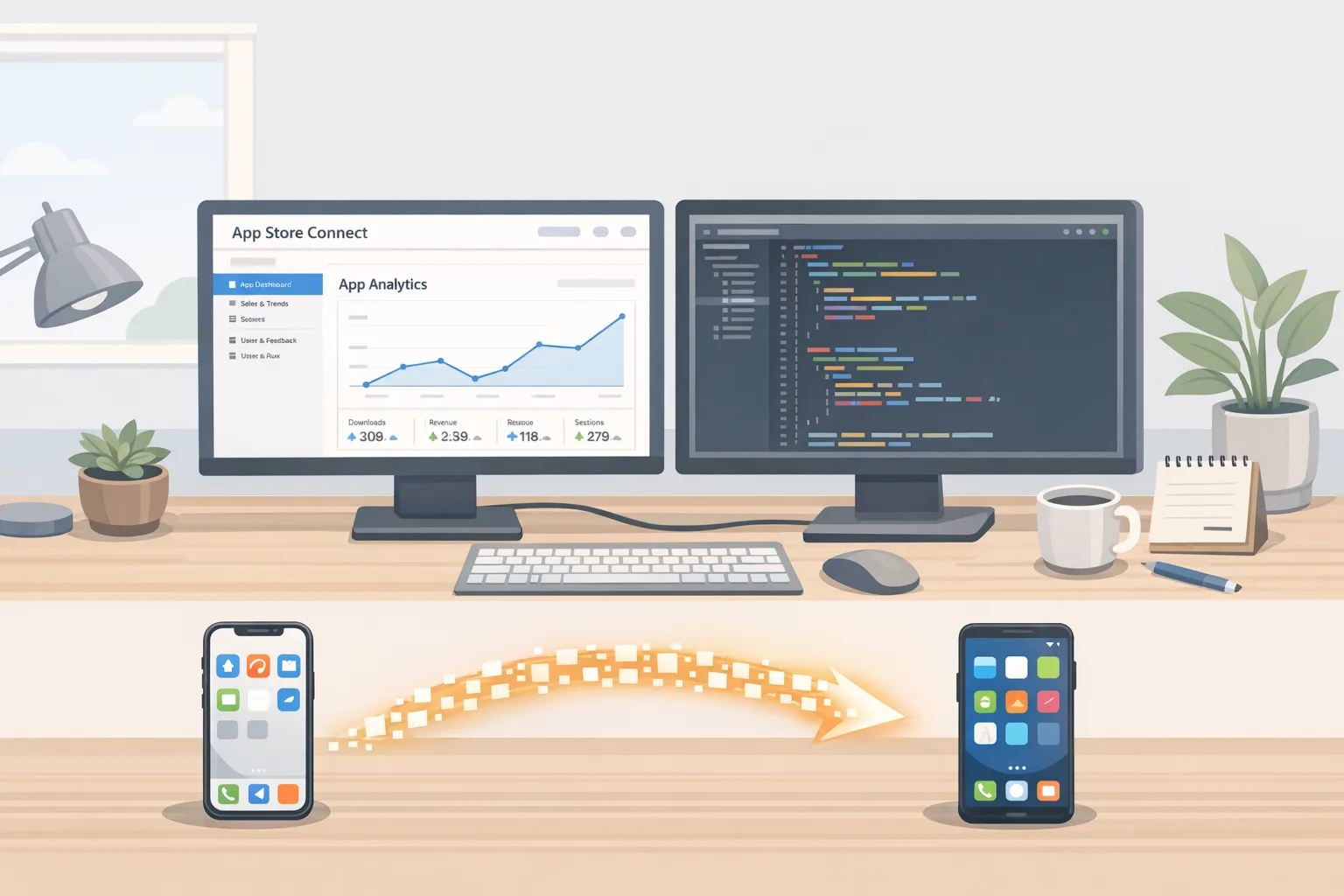
App Store Connect Update Feb 2026: Dev Playbook
The latest App Store Connect update landed on February 3, 2026. On the surface it’s a routine line in the release notes—acceptance of uploads from Xcode 26.3 RC, support for the iOS 26.2 SDK, and the usual TestFlight pipeline continuity. But here’s the thing: combined with December’s OS data transfer setup and Apple’s AppMigrationKit, this App Store Connect update is the moment to make your app truly portable across iOS and Android. If you ship mobile software for a living, this is about retention, acquisition, and lowering switching friction—right now.

What changed in the February 2026 App Store Connect update
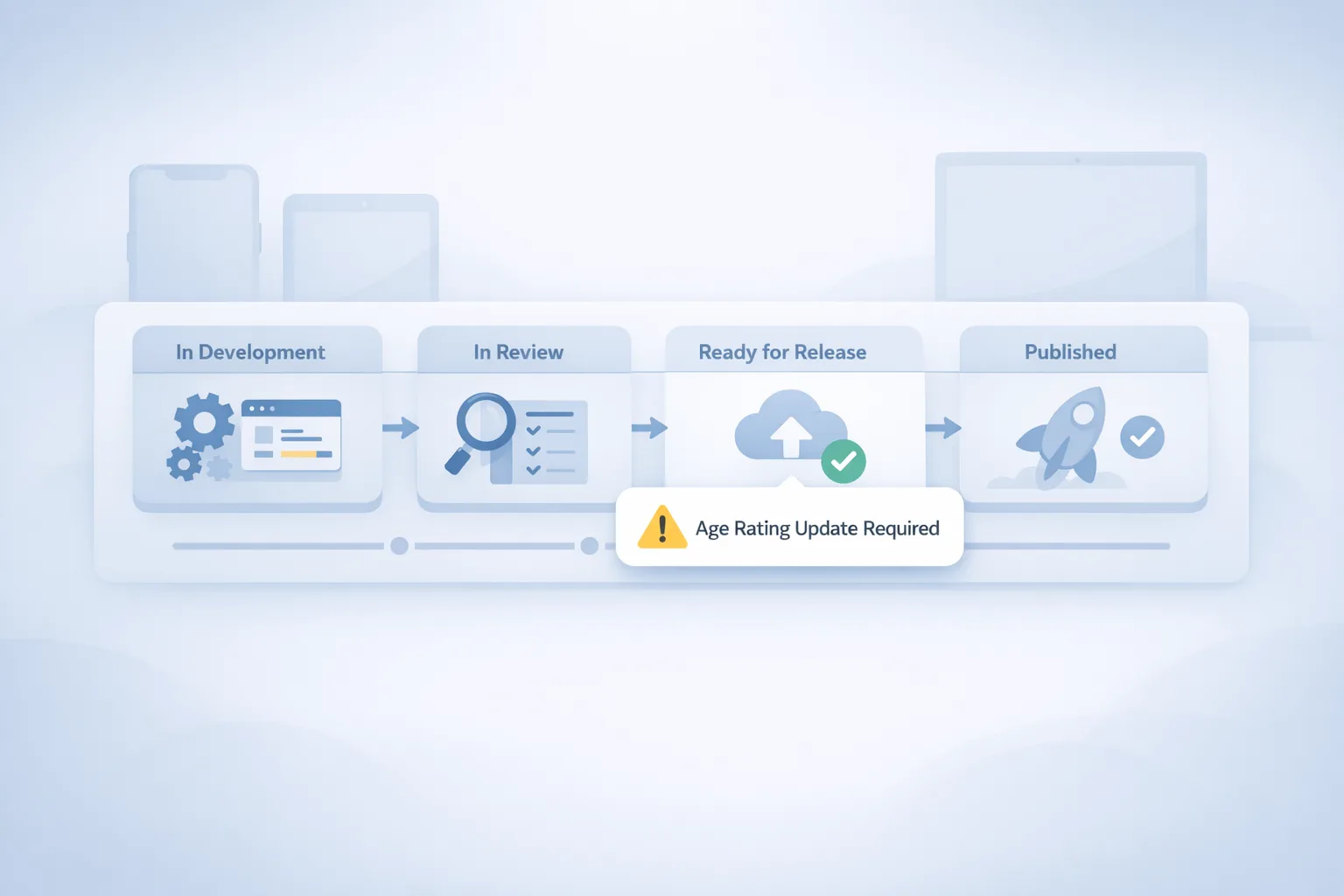
On February 3, App Store Connect began accepting builds created with Xcode 26.3 Release Candidate using the 26.2 SDKs across iOS, iPadOS, macOS, tvOS, visionOS, and watchOS. Practically, that means your pipelines can cut over to the RC without waiting for the full IDE release, and your TestFlight internal and external testers will be able to exercise 26.2 features with production‑grade signing and distribution.
Zooming out, the more impactful change actually arrived on December 15, 2025, when Apple enabled app mappings for OS data transfer inside App Store Connect. The February update didn’t add brand‑new knobs here; it signaled that the path is stable and ready for broader adoption ahead of iOS 26.3. If you missed it during holiday code freeze, now’s the time.
Cliff notes you can act on today:
- Submit with Xcode 26.3 RC using the iOS 26.2 SDK; TestFlight and App Review accept these builds.
- OS data transfer is live: map your Android package to your iOS bundle in App Store Connect, and mirror setup on Google’s side.
- Users need compatible OS versions for migration to work end‑to‑end (think iOS 26.3+ plus a recent Android build that supports the handoff).
Does TestFlight change with 26.3 RC?
Not materially. Internal/external testing works as before, but two small behaviors are worth noting. First, if you’re gating features to iOS 26.3 (for example, new migration flows), ensure your build’s availability and What to Test notes call this out to testers. Second, if you rely on SDK‑level capabilities introduced after 26.2, guard anything experimental behind server‑controlled flags so you can decouple rollout speed from IDE release cadence.
OS data transfer: make your app portable
OS data transfer lets users bring your app data from Android to iOS (and vice versa) during device setup. Under the hood, the process matches installed Android app IDs to your mapping table in App Store Connect, then orchestrates installation and data import on iOS. For many teams, the gotcha isn’t the framework code—it’s the console configuration.
Here’s how the mapping works in practice. In App Store Connect, you add your Android identifiers to your iOS app, including:
- Package name (for example, com.example.app)
- SHA‑256 certificate fingerprint for the app signing key
You also need to set things up on Google’s side so Android “knows” about the iOS counterpart. And if you want richer, app‑level data migration beyond basic install handoff, implement AppMigrationKit so your app can export/import on‑device data during setup. Think user preferences, offline caches, and a bootstrap token to rehydrate cloud state once the device finishes provisioning.
Important constraints: users must be on iOS 26.3 or later, plus a supported Android version that exposes the list of installed package IDs during migration. Apple’s documentation also notes that an iOS app maps to a specific Android package; while you can configure multiple mappings, teams should point to the canonical package to avoid fragmentation. If you have regional variants with different package names, decide on a single destination in each region to reduce surprises for users switching devices there.
What breaks if you skip setup on Google’s side?
Migration silently degrades. Your mapping in App Store Connect will not be enough; without a reciprocal configuration, users can complete device setup and never see your data carried over. Worse, they might assume your app “doesn’t support” migration. Set it up on both sides before you flip any UI that promises portability.
The 14‑day rollout plan (copy/paste this)
This is the practical sprint plan we’ve run with product teams who need to move fast without burning nights and weekends. Tweak to fit your release cadence.
- Day 1: Upgrade a clean branch to Xcode 26.3 RC. Confirm CI nodes match toolchain and signing. Run unit tests; fix deterministic failures only.
- Day 2: Integrate SDK 26.2 behaviors behind feature flags. Ship an internal TestFlight build to your core team.
- Day 3: In App Store Connect, add Android package name(s) and the SHA‑256 certificate fingerprint for your signing key. Document the mapping in your repo’s /ops folder.
- Day 4: In Play Console, verify app signing credentials. Cross‑check SHA‑256 for both upload and app‑signing keys; ensure you’re using the app‑signing cert for mapping.
- Day 5: Implement a minimal AppMigrationKit extension: export a sanitized user profile, local preferences, and a short‑lived, one‑time token for server re‑auth.
- Day 6: Wire the import path to handle missing fields gracefully. If your Android app writes a field you later deprecated, default it safely.
- Day 7: QA with two physical devices. Seed meaningful Android data, then migrate to iOS 26.3. Validate cold‑start time, state hydration, and sign‑in handoff.
- Day 8: Add privacy disclosures to your support docs and in‑app settings. Explain what’s migrated locally vs. re‑downloaded from the cloud.
- Day 9: External TestFlight. Recruit 10–20 Android switchers. Provide a screencast and a step list, not just a build link.
- Day 10: Triage telemetry: crash‑free sessions, migration duration p50/p95, and re‑auth success. Fix top two blockers only.
- Day 11: Prep App Review notes explaining your migration flows and any permission prompts on first launch post‑migration.
- Day 12: Submit. Stage rollout at 10% and monitor Help Center tickets tagged “switch” or “migrate.”
- Day 13: If metrics are green, scale to 50%. Announce migration support in your release notes and email onboarding.
- Day 14: Go 100%. Hand the learnings to Android and update your backlog with edge cases you observed.
Checklist: configuration details you’ll kick yourself for missing
These are the boring details that tank timelines when overlooked:
- Use the app signing certificate’s SHA‑256 (not the upload key). Copy it exactly; stray colons or whitespace can invalidate matching.
- Map to your canonical Android package. If you’ve renamed packages historically, add mappings thoughtfully and remove stale ones.
- Fail closed on sensitive fields. If you migrated an access token, force a fast re‑auth on first launch and rotate the token server‑side.
- Add observability. Emit a single migration event with a schema that includes source OS version, duration, and keys for success/failure reason.
People also ask: common migration questions
Do we need AppMigrationKit if we already sync via cloud?
Yes—if you want a smoother first session. Cloud sync alone works, but a local seed makes the first post‑setup launch feel instant. Migrate lightweight state (preferences, last screen, cached assets) and hand off a one‑time token so the app can rehydrate server state in the background.
Where do we find the right SHA‑256 fingerprint?
In Play Console under App integrity/App signing. Grab the app‑signing certificate’s SHA‑256, not the upload key. If you’re unsure which your production bundle uses, verify the cert of a Play‑delivered APK/AAB and match it to the console’s value.
Will App Review reject us if our iOS build references Android?
No—as long as you’re not steering users to non‑compliant payment flows. Referencing migration for setup is fine. Your Review notes should briefly explain why your app requests certain permissions after migration (for example, local notifications to complete re‑auth).
Data‑backed timeline: what matters in Q1–Q3 2026
Let’s anchor this to dates so your roadmap is honest. iOS 26.2 shipped on December 12, 2025. Apple enabled OS data transfer mapping in App Store Connect on December 15, 2025, and on February 3, 2026, Connect began accepting Xcode 26.3 RC uploads for 26.2 SDKs across platforms. Migration features require iOS 26.3 or later for the target device, so plan your launch content accordingly. This sequencing is your window: teams that wire up mapping and implement a minimal migration extension this month will be positioned for smoother acquisition spikes as devices churn mid‑year.
Risk, privacy, and edge cases
But there’s a catch: portability without clarity can backfire. If you migrate too much, you may move stale or sensitive data that users didn’t expect to travel. Keep your migration payload small, documented, and revocable. Expose a “Reset migrated data” control under Settings and explain what it does.
Another edge case: multi‑tenant or white‑label apps with region‑specific packages. A sloppy mapping table can route users to a sibling app during setup. Solve this with region‑aware mapping rules and a post‑install check that verifies the tenant and, if needed, prompts the user to switch to the correct app via a deep link.
App Store Connect update: how this changes product strategy
This isn’t just a build pipeline change. Making migration seamless increases your effective TAM because switching costs drop. If you’re fighting re‑acquisition loss when users swap ecosystems, this is a gift. Marketing can run “Bring your data with you” campaigns; support can slash “I switched phones and lost everything” tickets; product can justify polishing first‑run experiences because they’ll actually be seen.
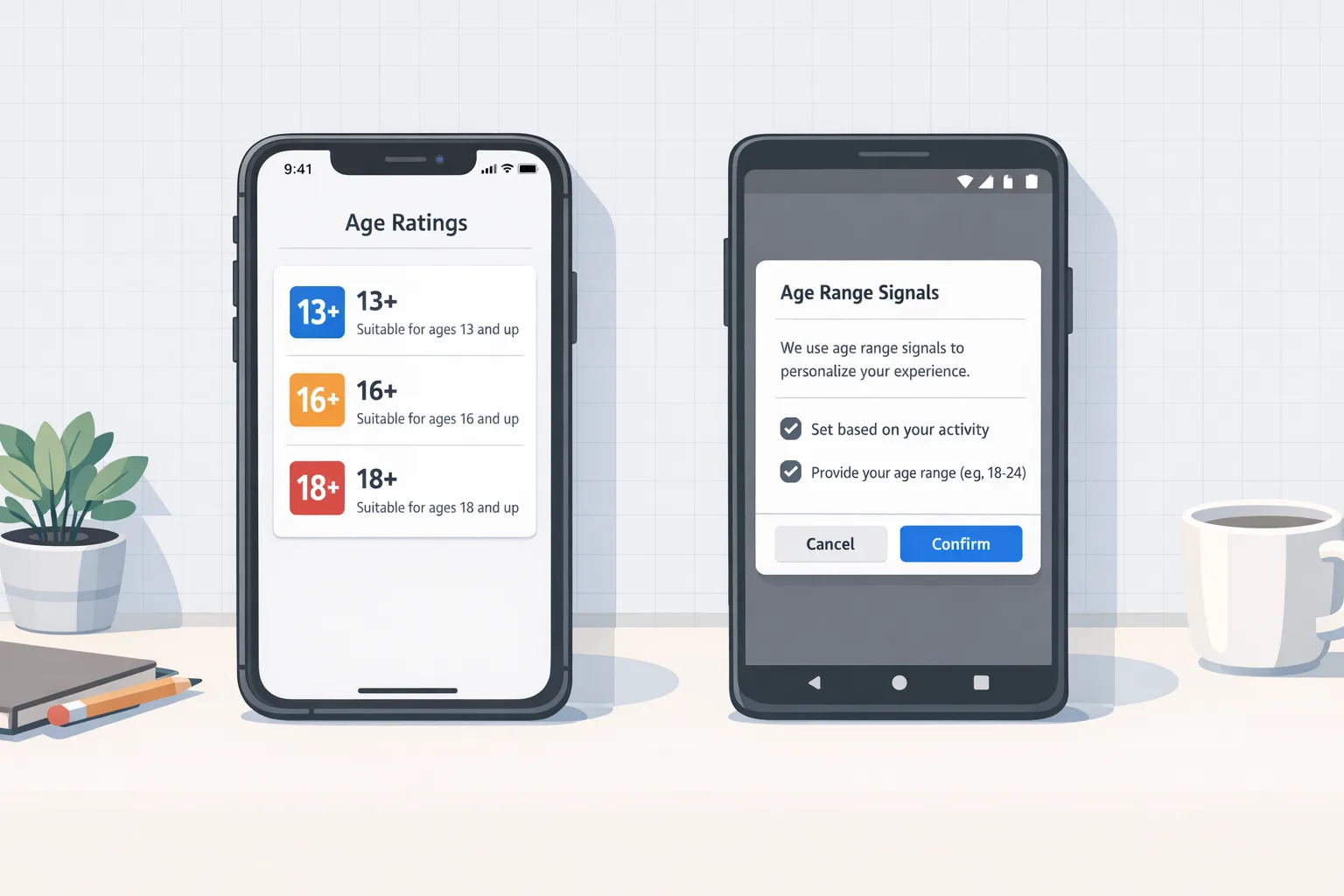
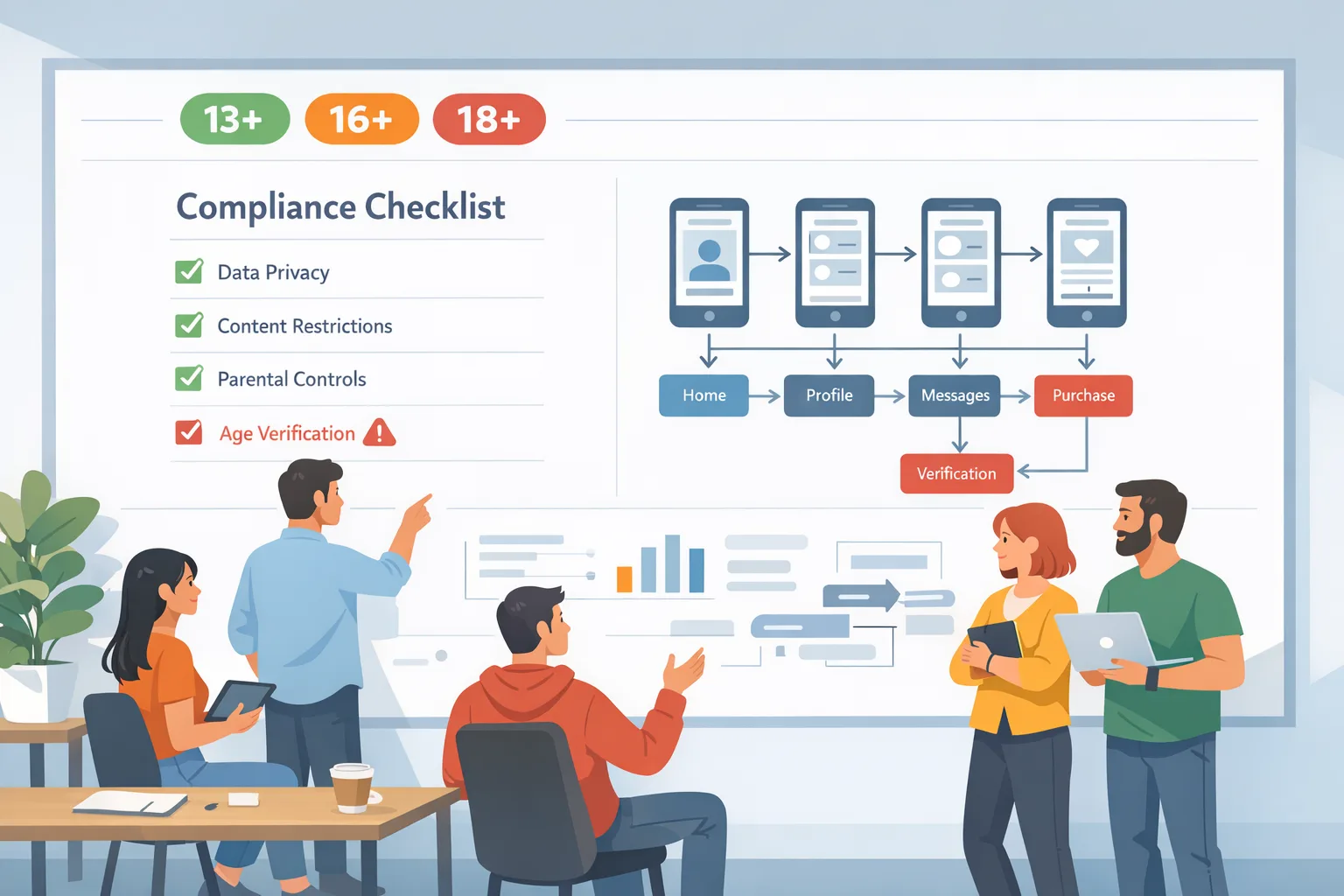
It also tightens your compliance posture. As youth‑safety and age‑gating rules evolve in the U.S. and abroad, clear migration flows plus transparent disclosures make reviews easier and policy audits less painful. If you’re navigating those changes right now, our deep dives on store policy shifts are a good companion read—see the practical guidance in App Store Age Ratings 2026: What Devs Must Change Now and the follow‑ups covering enforcement and post‑deadline planning.
Implementation notes from the field
From hands‑on work with teams shipping on both stores, a few patterns keep paying off. First, treat migration like a critical path onboarding flow and give it the same crash/ANR budgets. Second, build a tiny migration scene that shows a progress indicator and says exactly what’s happening (“Restoring preferences… Reconnecting your account…”). Third, after the first successful launch, persist a flag so the migration path never runs again unless the user explicitly requests it.
Finally, invest an hour in your help docs. A single, up‑to‑date support page that explains migration reduces support drag and increases confidence during App Review. If you need a partner to pressure‑test your plan, our team has been helping product orgs accelerate rollouts like this—start with our mobile engineering services overview and see how we scope engagements, or skim proofs in our portfolio case studies.
Testing matrix: keep it small, make it real
Don’t overcomplicate the test matrix. Cover three scenarios thoroughly instead: 1) new iPhone setup migrating from a mainstream Android device with lots of local data, 2) migration with a weak network where your app must resume gracefully, and 3) a user with multiple historical Android packages that could map to your iOS app—ensure your table picks the right one. Measure end‑to‑end time, cold‑start time, and sign‑in completion rate.
For Android, validate that the exported payload excludes secrets that shouldn’t leave the device. For iOS, validate that migrated preferences don’t clobber server‑authoritative settings. If there’s any ambiguity, server wins.
Compliance horizon: don’t get surprised this summer
Regulatory timelines are colliding with your roadmap. By August 2, 2026, most EU AI Act obligations for high‑risk systems enter into application. Even if your app isn’t “high risk,” your ML features and documentation expectations are heading in that direction. Use this quarter’s migration work as an excuse to inventory data flows, update your privacy disclosures, and write the missing SOPs. For a practical guide, bookmark our EU AI Act 2026: The Last‑Mile Compliance Playbook.
What to do next
- Map your Android package and signing certificate in App Store Connect today; mirror the setup in Play Console.
- Implement a minimal AppMigrationKit extension to export/import lightweight state and a one‑time bootstrap token.
- Run the 14‑day rollout plan and instrument migration metrics (duration, success rate, re‑auth).
- Update support docs and in‑app disclosures so users understand what crosses the bridge.
- Plan a promo around portability once rollout data is green; train support on the flow.
If you’d like a second set of eyes on your pipeline, scope a quick consult via our contact page, or catch ongoing mobile releases and policy shifts on our engineering blog. And if you’re juggling Play Store youth‑safety enforcement alongside this work, our Play Age Signals API: 2026 Compliance Playbook breaks down what to instrument and when.


Comments
Be the first to comment.